


Introduction to How to Assign Users to Programs
Assigning users to programs links community members to the events, resources, and communications relevant to their participation. It is the foundation for structured engagement within any user-facing program in AcceleratorApp.
Only Admin roles can assign users and startups to programs. Make sure the program you want to assign users to has already been created before starting.
Where to Find User Program Assignation
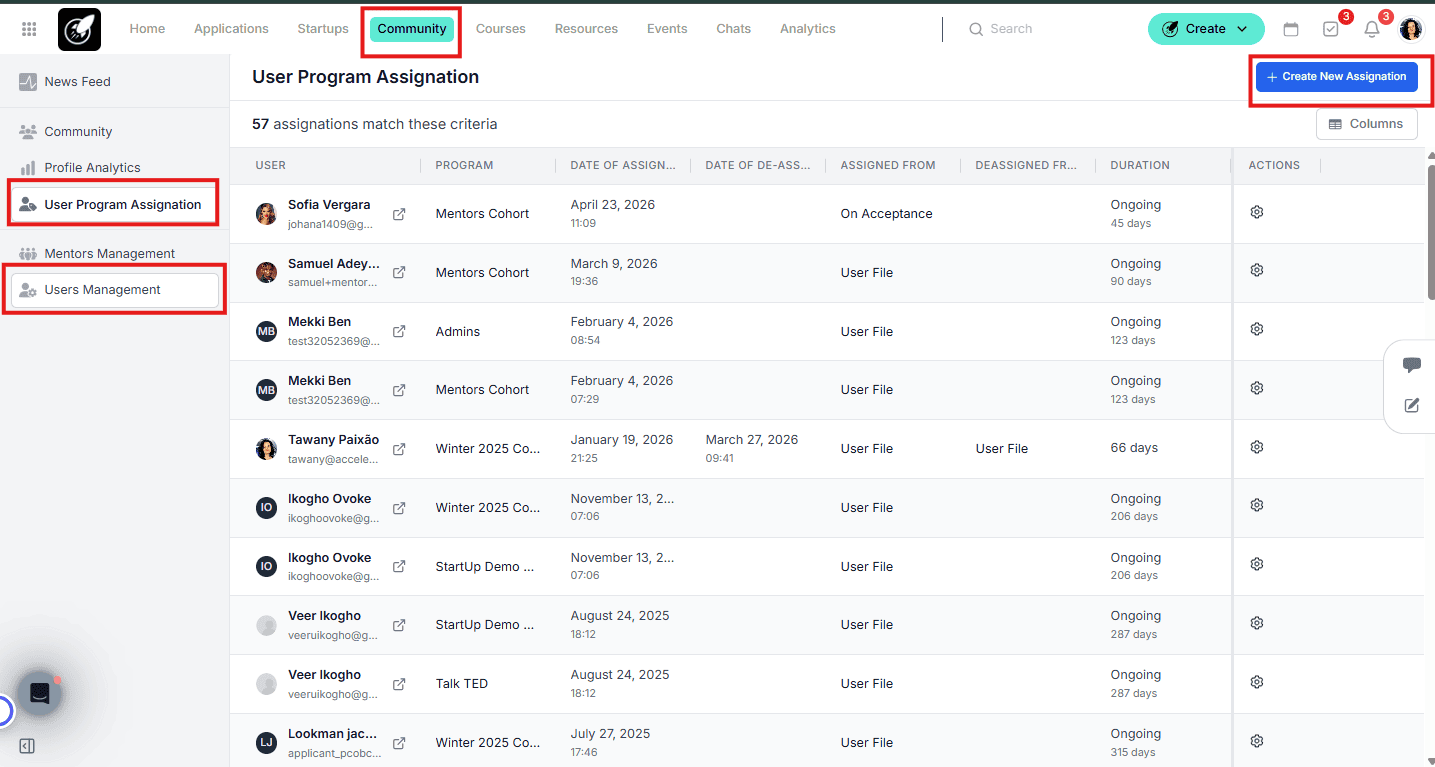
Navigate to the Community section in the top menu. From there you can access either User Program Assignation or User Management — both allow you to assign users to programs.
Step-by-Step
There are two ways to assign a user to a program:
1. From User Program Assignation
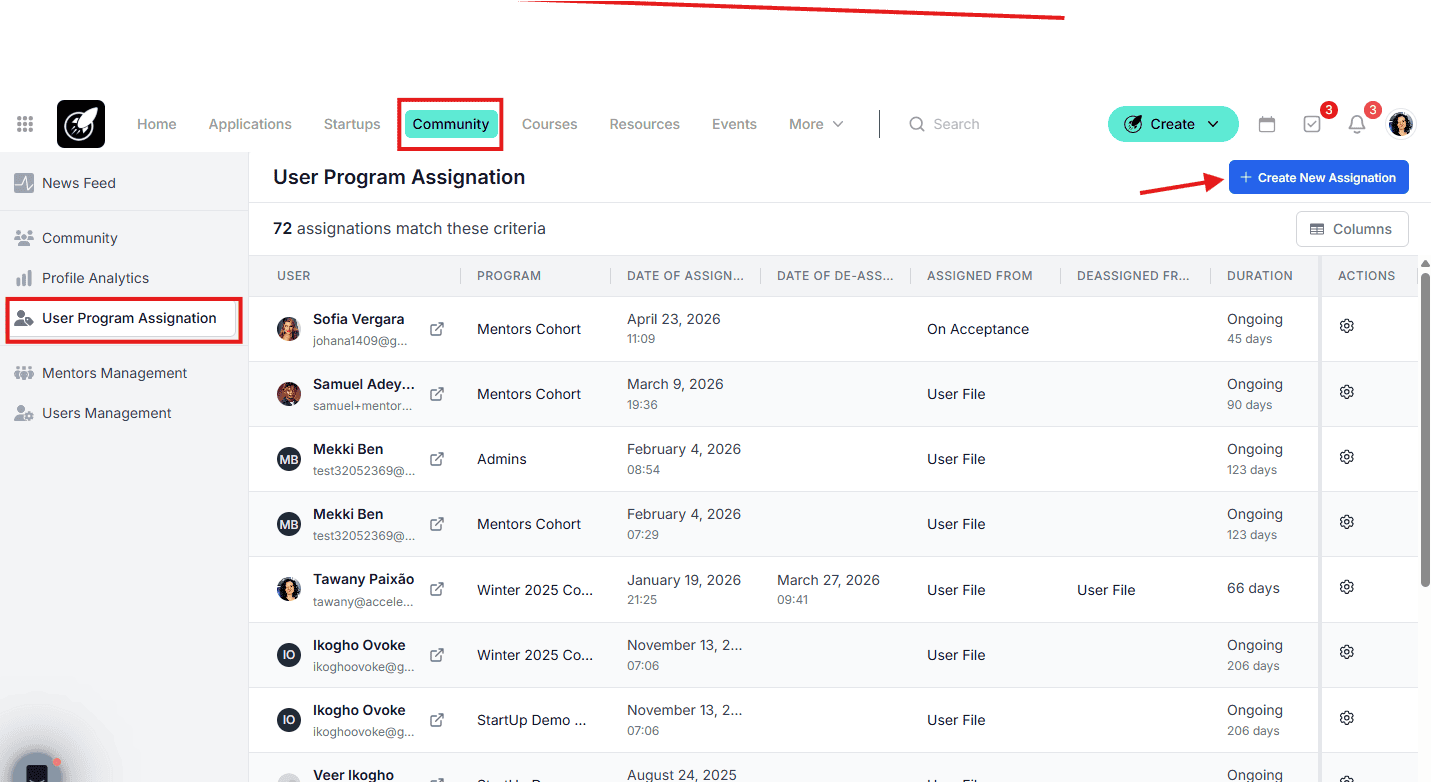
Go to Community in the top menu and click User Program Assignation.
Click Create New Assignation.
Select the Community Member and the Program, then click Create.
2. From User Management
Go to Community in the top menu and click User Management.
Open the user you want to assign (gear icon), select a Program, and click Save.
Best Practices
- Create the program first. Users can only be assigned to programs that already exist — set up your program structure before starting the assignation process.
- Use User Program Assignation for bulk or dedicated assignment workflows. Use User Management when you are already editing a specific user's profile and want to assign them on the spot.
- Keep community members engaged after assignment by sharing relevant resources and articles tied to their program.